How to Open a Template in Google Sheets (XLSX)
Every Sheetorial template downloads as an .xlsx file — the standard spreadsheet format that Google Sheets, Microsoft Excel and LibreOffice Calc all read. Google Sheets doesn't open files straight from your downloads folder, so the file has to get into Google's side of the fence first. There are three ways, all free; pick the one that matches how you work.
Option 1: Import the XLSX file into Google Sheets
The most direct route, entirely inside Google Sheets:
- Open sheets.google.com and create a blank spreadsheet (or open any existing one).
- Go to File > Import > Upload.
- Drag the downloaded .xlsx into the window, or browse to it.
- When asked where to put the data, choose Create new spreadsheet, then open it.
You get a native Google Sheets copy of the template, saved in your Drive. The original .xlsx stays untouched in your downloads folder, so you can re-import a clean copy any time.
Option 2: Upload the file to Google Drive and open it
If you live in Google Drive, skip the import dialog:
- Open drive.google.com and click New > File upload — or just drag the .xlsx into the Drive window.
- Double-click the uploaded file. It opens in Google Sheets directly, still in Excel format (you'll see an .XLSX badge next to the file name).
- To convert it, go to File > Save as Google Sheets. A native Sheets copy appears in the same folder.
You can edit the file in the .xlsx state without converting it, and our templates work fine that way. Converting is still the better default for daily use: native Sheets files get autosave history and don't count against Drive storage.
Option 3: Let Drive convert every upload automatically
If you open downloaded spreadsheets often, flip one switch instead of converting each file:
- In Google Drive, click the gear icon > Settings.
- Under General, tick Convert uploaded files to Google Docs editor format.
From then on, every .xlsx you upload becomes a Google Sheets file on arrival — no dialogs. Leave the setting off if you also store Excel files in Drive that must stay as Excel files; it converts everything.
Does this convert the Excel file to Google Sheets?
Yes — importing (option 1), saving as Google Sheets (option 2) and auto-converting (option 3) all produce a real Google Sheets file, not a preview. Conversion is where complex Excel workbooks sometimes lose features, so our templates are deliberately built inside the common ground: the formulas only use functions that behave the same in Google Sheets, Excel and LibreOffice, and the dropdowns, conditional formatting and tab links survive the trip. What you see in the template screenshots is what you get after conversion.
Opening the template in Excel or LibreOffice instead
No steps to list: .xlsx is Excel's native format, so double-clicking the downloaded file opens it ready to edit, and LibreOffice Calc reads it the same way. No Google account is involved. If you later want the file in Google Sheets after all, any of the three options above takes the same file in.
One file per language
Sheetorial templates are published in eleven language editions, and each is its own .xlsx — not one file with a language menu. Tab names, column labels, dropdown values and the date and currency formats are translated in the file itself, so the Spanish edition of a budget really is in Spanish down to the formulas' sheet references. Download the template from the page in your language and you get the matching file; the steps on this page are identical for all of them.
Still stuck on something? The help page covers downloads, languages and licensing, or start browsing the free Google Sheets templates.
Browse templates
-
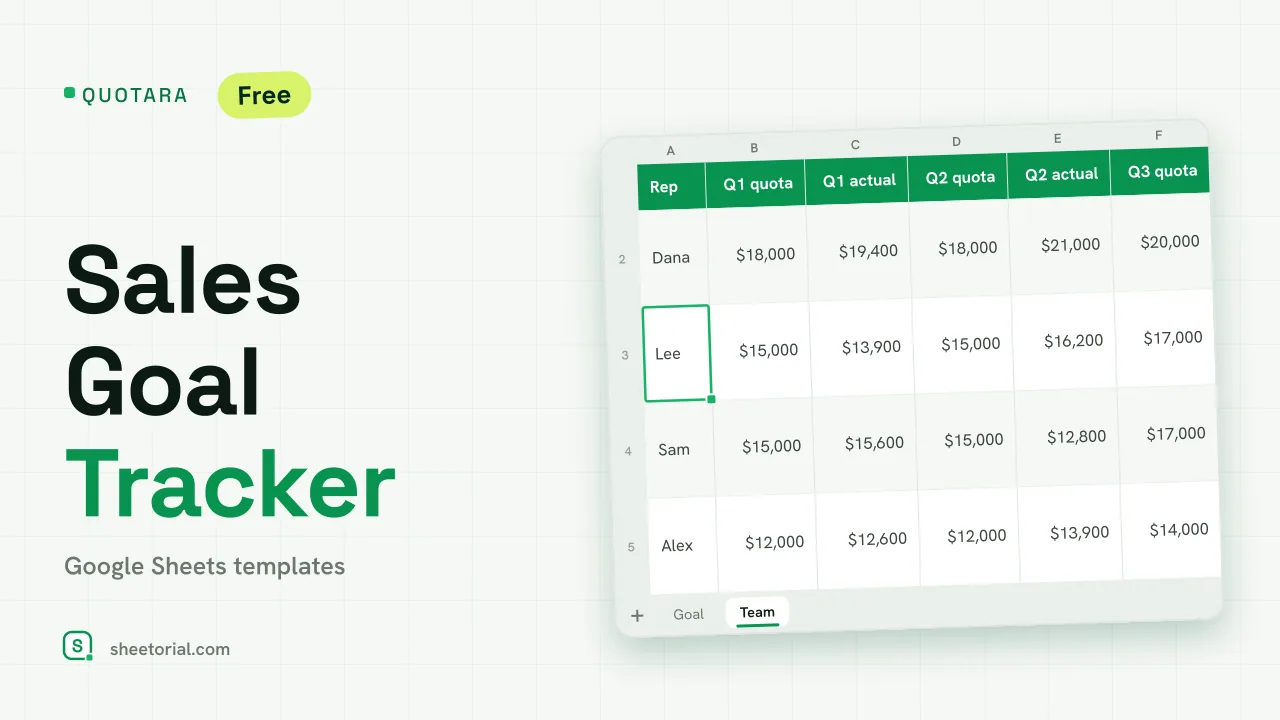 CRM & Sales QUOTARA: Sales Goal Tracker for Google Sheets Sales goal tracker for Google Sheets: an annual goal split into monthly targets, actual vs target, a year-end projection and quarterly quota by rep. Free. View template →
 -
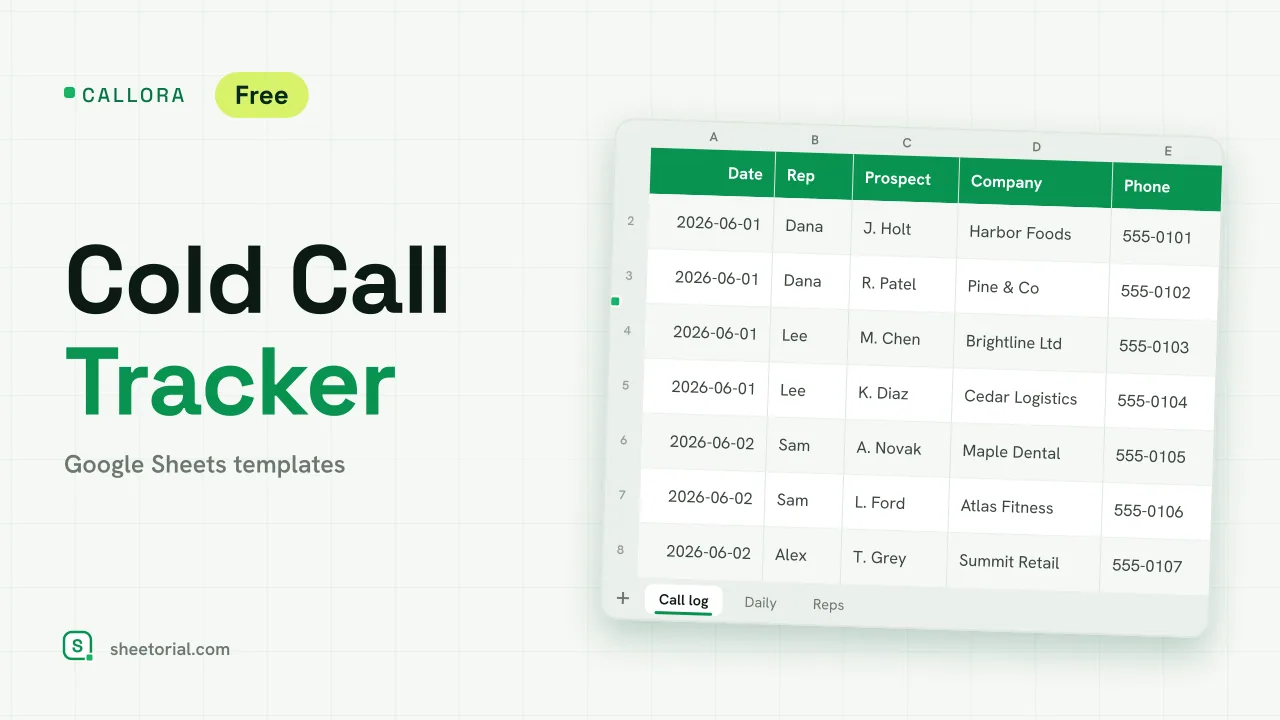 CRM & Sales CALLORA: Cold Call Tracker for Google Sheets Cold call tracker for Google Sheets: a sales call log that counts dials, connects and meetings booked, with daily activity and rates per rep. Free XLSX. View template →
 -
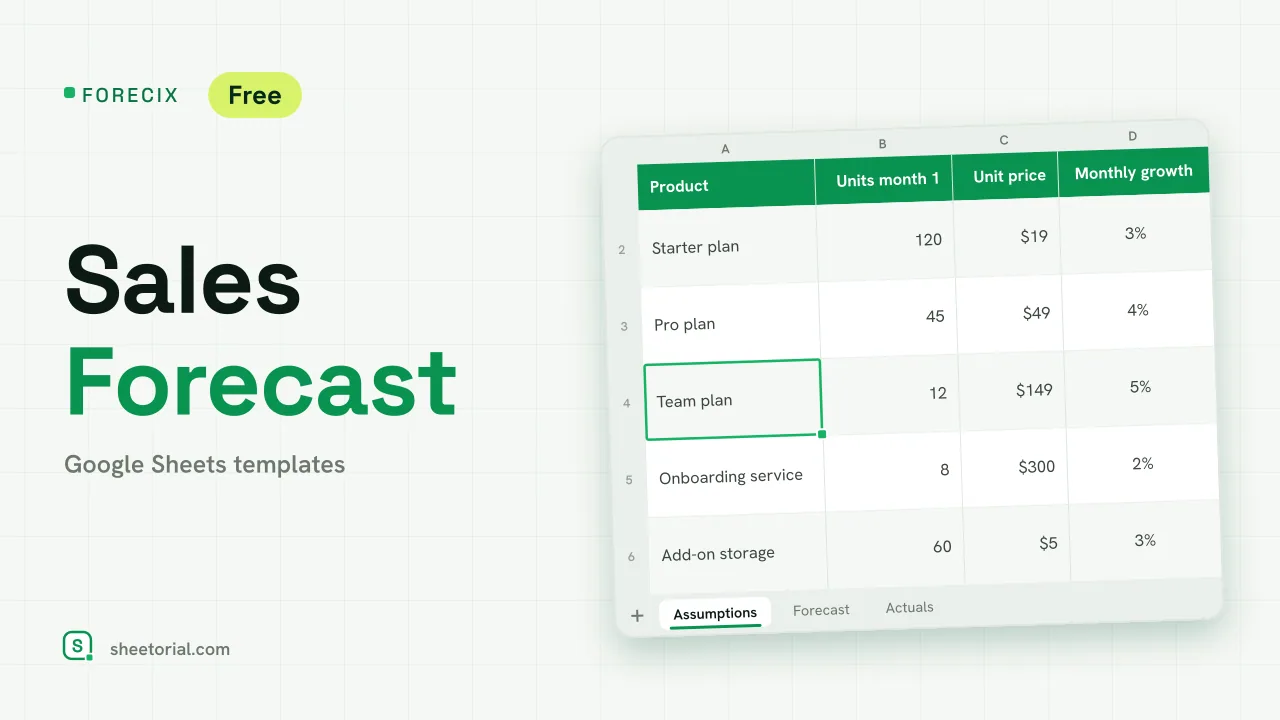 CRM & Sales FORECIX: Sales Forecast Template for Google Sheets Sales forecast template for Google Sheets and Excel: 12 months of units and revenue per product from starting volume, price and growth, plus actuals vs forecast. View template →
 -
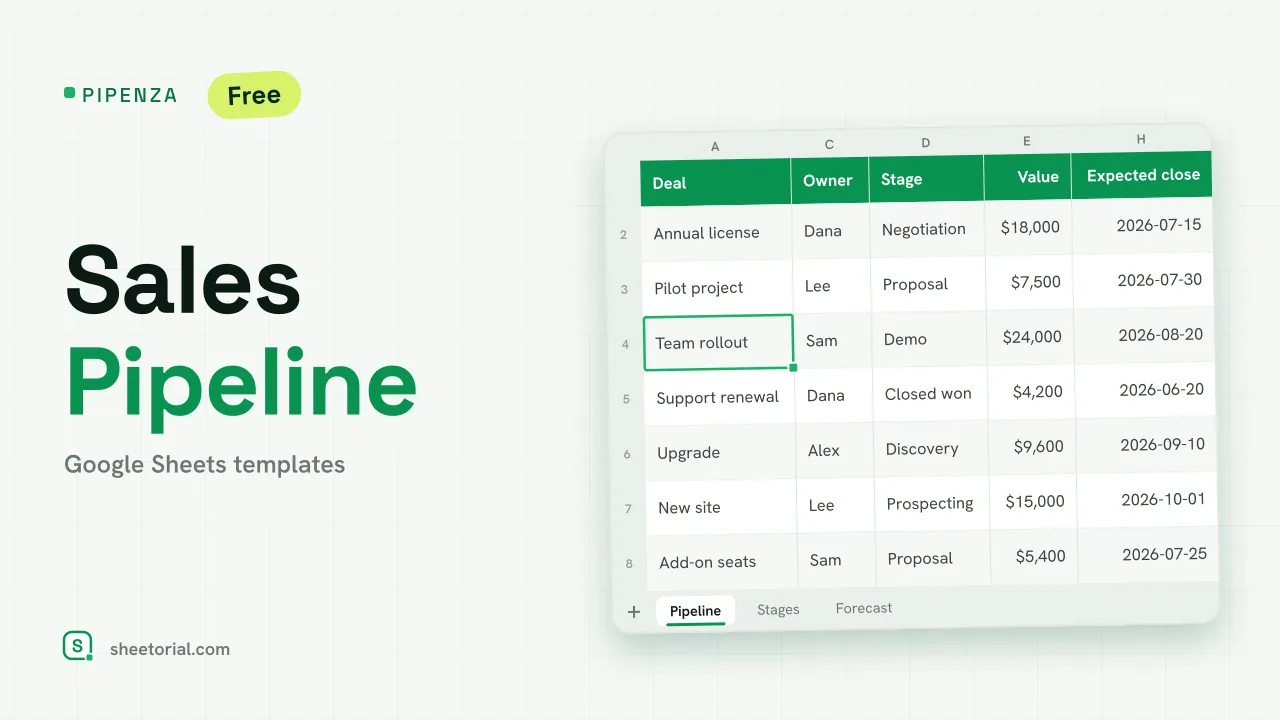 CRM & Sales PIPENZA: Sales Pipeline Template for Excel and Google Sheets Sales pipeline template for Excel and Google Sheets: deals by stage with win probability, weighted value, overdue close dates and a forecast by month. Free. View template →