LEAVIX: PTO Tracker for Google Sheets
Important: you need to be signed in to a Google account to copy the template to your Drive. Need help opening the template?
LEAVIX keeps a paid-time-off balance for every member of the team and lets a request log do the counting. You set each person's allowance once; approved leave comes off it on its own, and the remaining days are always current. It's a PTO tracker for Google Sheets with no account behind it and no trial — the free .xlsx download is the product, and it opens in Google Sheets, Excel or LibreOffice. It's an absence record, not legal or HR advice.
A leave tracker in two working tabs
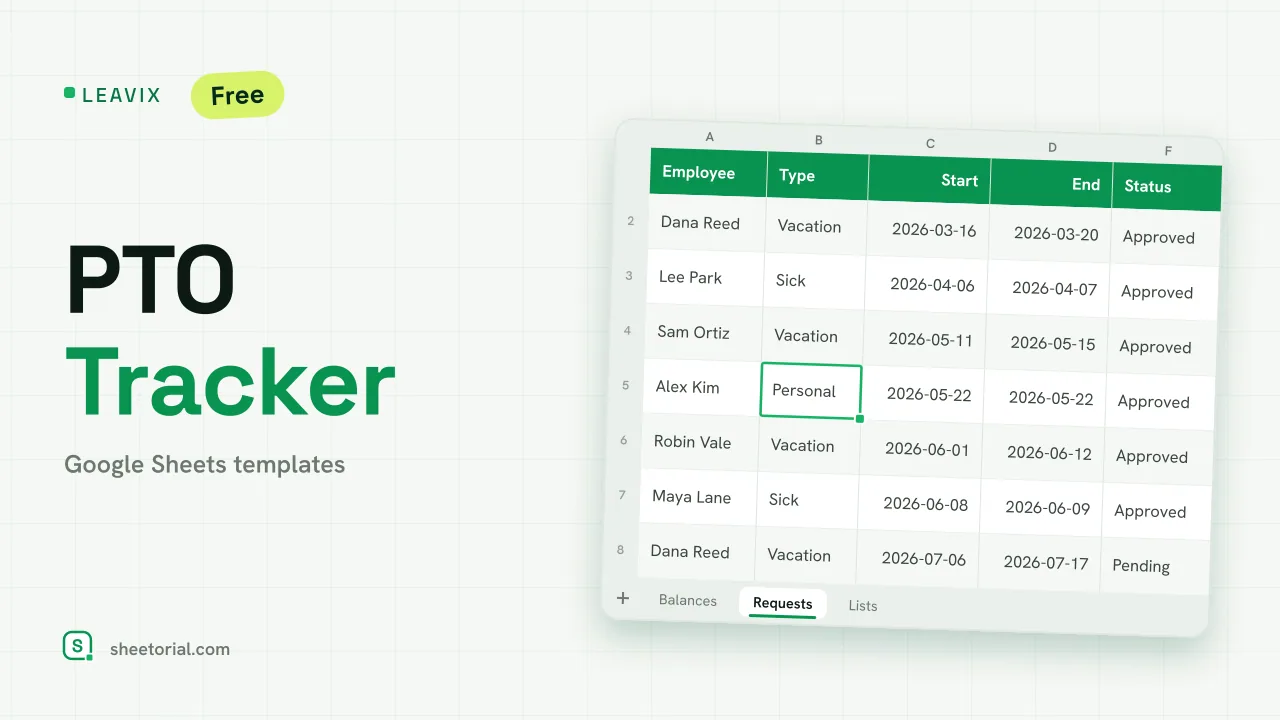
Balances holds one row per employee: name, department, allowance, days taken, days remaining and percent used, with four totals above for the team's headcount, allowance, taken and remaining. Requests is the log: employee (from a dropdown), leave type, start, end, days and a status (Pending, Approved or Declined). The third tab, Lists, is the editable source of the dropdowns — your leave types (Vacation, Sick, Personal, Unpaid and any you add) and the request statuses. The sheet works equally as a vacation tracker; the leave types are yours to name.
How the PTO tracker counts days off
Each request's length is calculated from its dates, inclusive of both ends. Taken is a SUMIFS that adds up only the Approved requests for that employee, so a Pending or Declined row sits in the log without touching anyone's balance. Remaining is allowance minus taken, and percent used follows. Two colour rules watch the balances: a row turns amber once 80% of the allowance is used and red if remaining goes below zero. In the log, an Approved request shades green, a Declined one fades red and a Pending one sits amber. Eight sample employees and twelve sample requests arrive ready, with approvals already deducting, so every formula and flag is visible before you clear them.
How to track PTO in Google Sheets
- Add your team on the Balances tab with each person's annual allowance.
- List the leave types you use on the Lists tab if you want different ones.
- Log each request in Requests, picking the employee, type and status; the days are counted for you.
- Only Approved requests deduct — Taken and Remaining update on the Balances tab.
- Watch the amber rows (80%+ used) and the red ones (balance overdrawn).
A PTO tracker in eleven languages
Teams don't all track leave in English, so LEAVIX ships in eleven language editions — each a separate .xlsx with tab names, column labels, leave types, statuses and date formats translated, formulas untouched. Download the one that matches your page language, and use the opening guide if the .xlsx import step is new to you.
A leave balance is one part of running a small team; the sales side of the same business is covered by KLIENTRA, the CRM template. More tools for running an operation sit under business templates for Google Sheets.
More templates
-
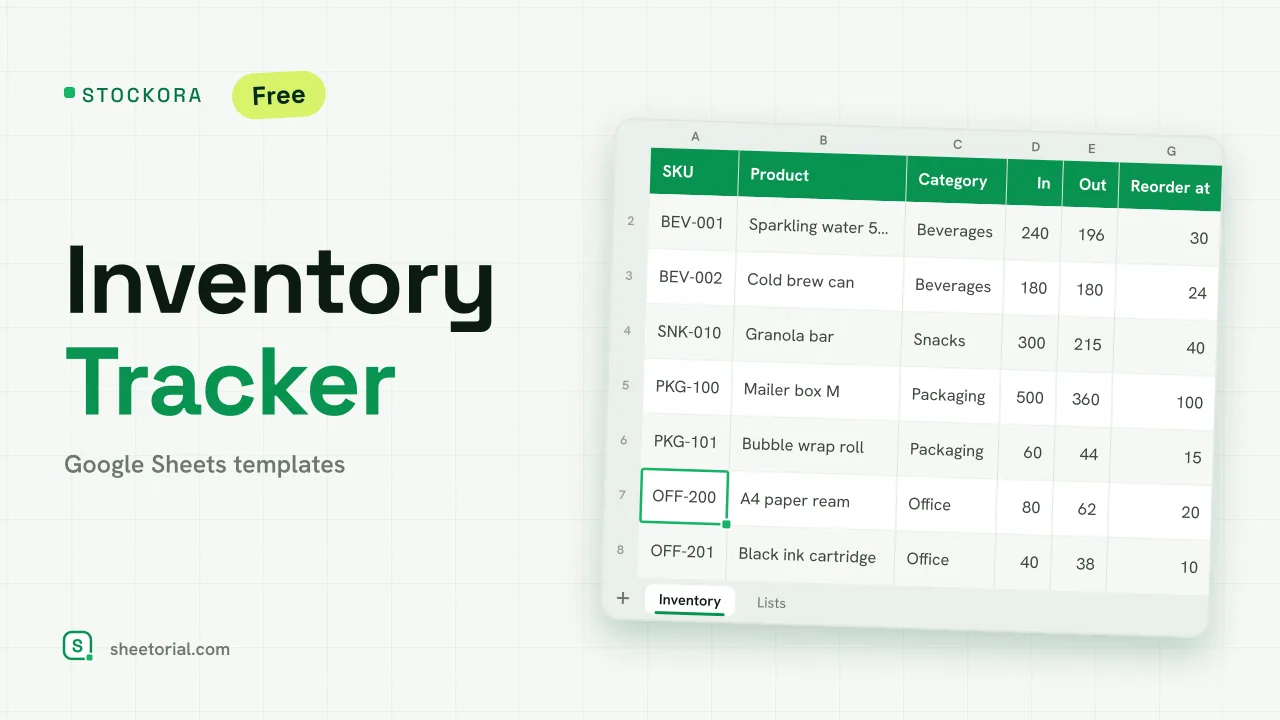 Inventory Spreadsheet STOCKORA: Small Business Inventory Template for Google Sheets Small business inventory template for Google Sheets: stock in/out, current stock and value, reorder alerts and totals. Free XLSX, no account, no trial. View template →
 -
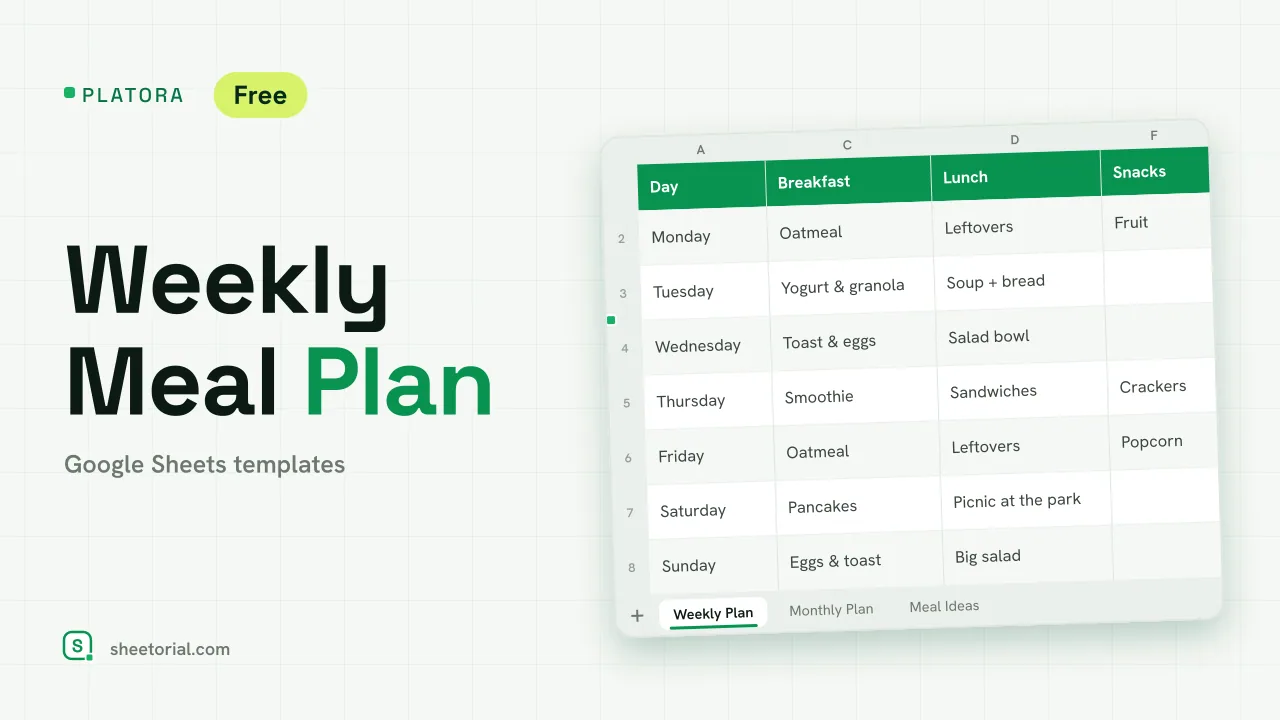 Meal Planning PLATORA: Free Weekly Meal Plan Template for Google Sheets Free weekly meal plan template for Google Sheets with breakfast, lunch, dinner and snacks per day, a dinner ideas dropdown and a monthly view on its own tab. View template →
 -
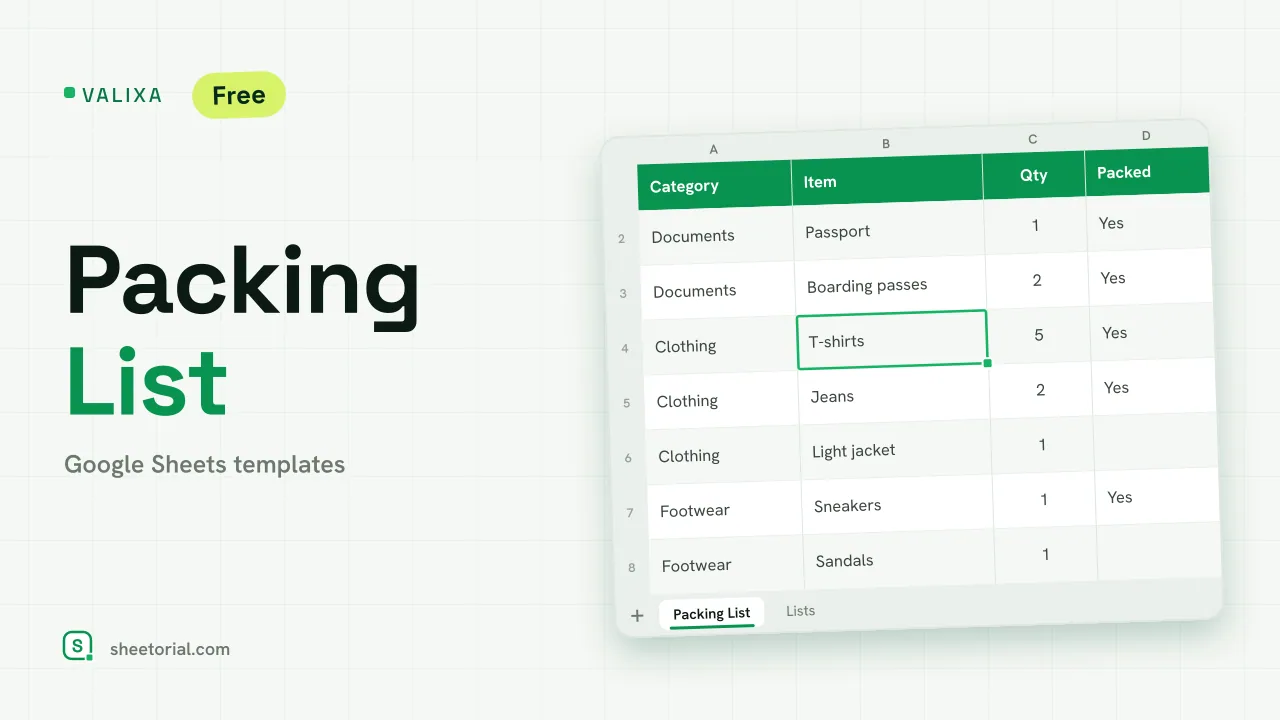 Travel & Itinerary VALIXA: Packing List Template for Google Sheets Free packing list template for Google Sheets: items by category, quantities, a Packed dropdown and a progress counter that says what's left to pack. View template →
 -
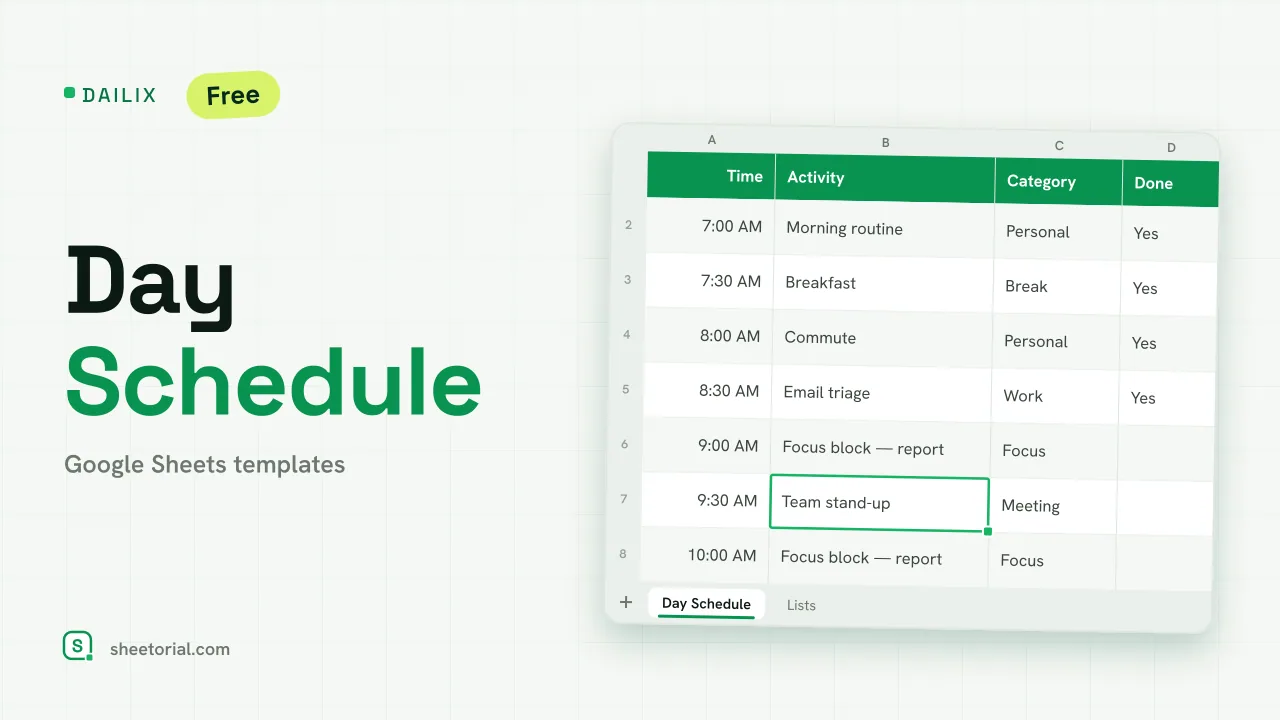 Schedule DAILIX: Day Schedule Template for Google Sheets Free day schedule template for Google Sheets: 28 half-hour blocks that recalculate from your start time, a top-3 priorities box and a done counter. View template →