OVERIX: Overtime Tracker for Google Sheets
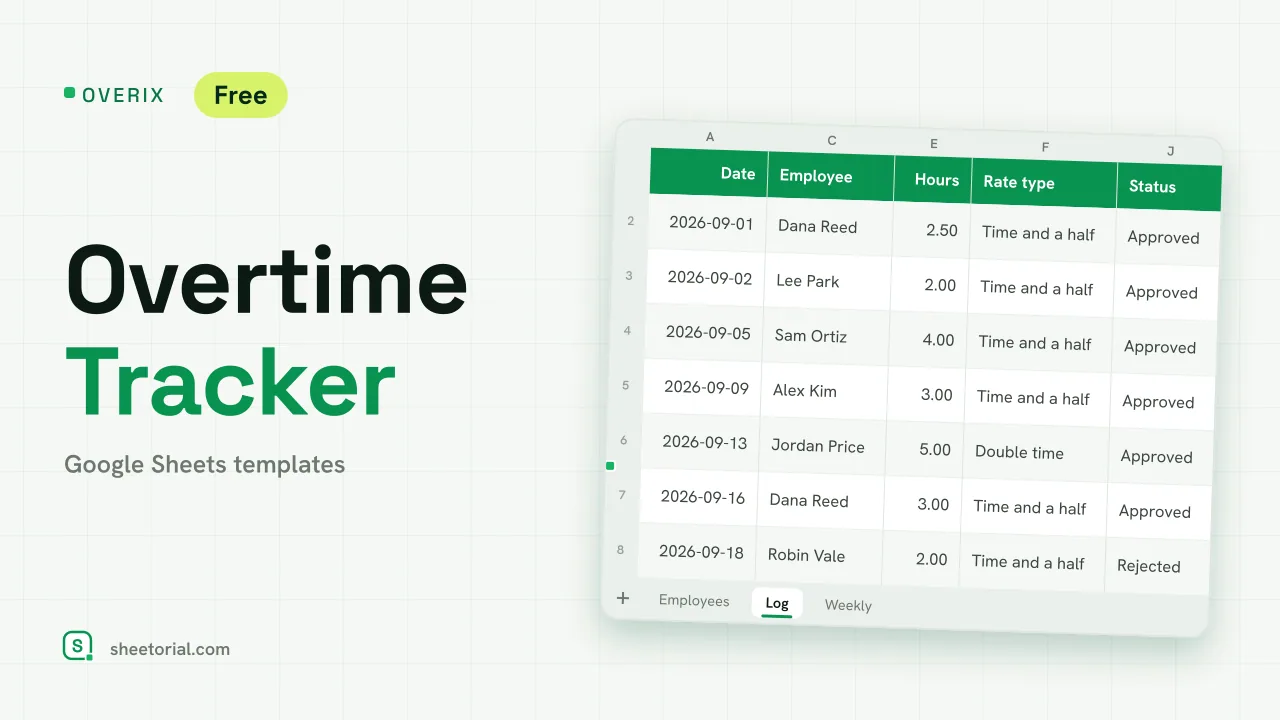
Important: you need to be signed in to a Google account to copy the template to your Drive. Need help opening the template?
OVERIX keeps overtime out of email threads. Every block of extra hours goes into one log with who worked it, why, how many hours and whether a manager approved it; the sheet prices each block, totals the approved hours per person and shows them week by week. It is an overtime tracker for Google Sheets that you download free as an .xlsx and can open in Excel. Overtime rules depend on your contracts and where you are, so the multipliers are settings you fill in, not rules the sheet assumes.
An employee overtime tracker with approvals
The Log tab has one row per block: date, employee, reason, hours, rate type and status, plus who approved it. Status comes from a dropdown (Pending, Approved, Rejected), and only Approved rows count towards pay and totals; Pending rows are counted apart so you can see what is waiting. Approved rows shade green, pending ones amber and rejected ones red. The Week of column works out the Monday of each date with WEEKDAY, which is what the weekly view groups by.
How the overtime tracking sheet works out pay
Each rate type on the Lists tab has a multiplier you set: the sample uses Time and a half, Double time and Straight time. In the log, the multiplier and the employee's hourly rate are looked up with VLOOKUP, and pay is hours times rate times multiplier. Change a multiplier on Lists and every row that uses it is repriced. The Employees tab holds each person's hourly rate and an hour budget, and adds up approved hours, pending hours and overtime pay with SUMIFS. A person who has used 80% of their budget turns amber, and one who has gone over it turns red.
Weekly overtime hours by employee
The Weekly tab shows eight weeks of approved overtime per employee, starting from a Monday you choose, with a total for each person. Weeks with eight or more approved hours shade amber, which is a quick way to spot who is carrying the extra load. Thirteen sample entries across September and October show approved, pending and rejected rows and all three rate types.
How to track overtime in Google Sheets
- Set the multipliers your contracts or local rules use on Lists.
- Enter each employee's hourly rate and hour budget on Employees.
- Log every block of extra hours with its reason and rate type.
- Approve or reject each row in Status.
- Check the budgets on Employees and the weekly load on Weekly.
An overtime tracker for Excel and Google Sheets in eleven languages
OVERIX comes in eleven editions with translated tabs, reasons and rate types and local currency and date formats; the formulas are the same in all of them. The opening guide explains the import. To record the full working day rather than only the extra hours, use BIHORA, the biweekly timesheet, which splits weekly overtime out on its own. More sheets are under HR and time tracking templates.
More templates
-
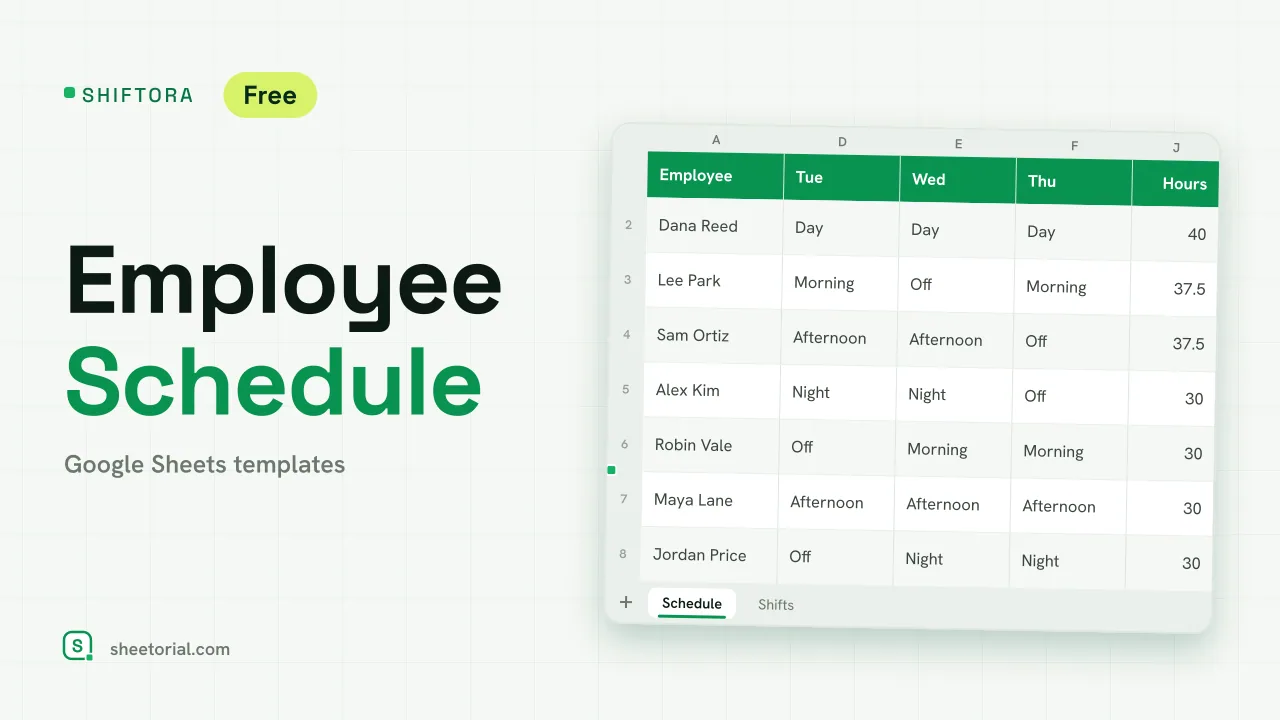 HR & Time Tracking SHIFTORA: Employee Schedule Template for Google Sheets Employee schedule template for Google Sheets: a weekly shift grid, hours against contract per person and coverage per shift and day against the staff you need. View template →
 -
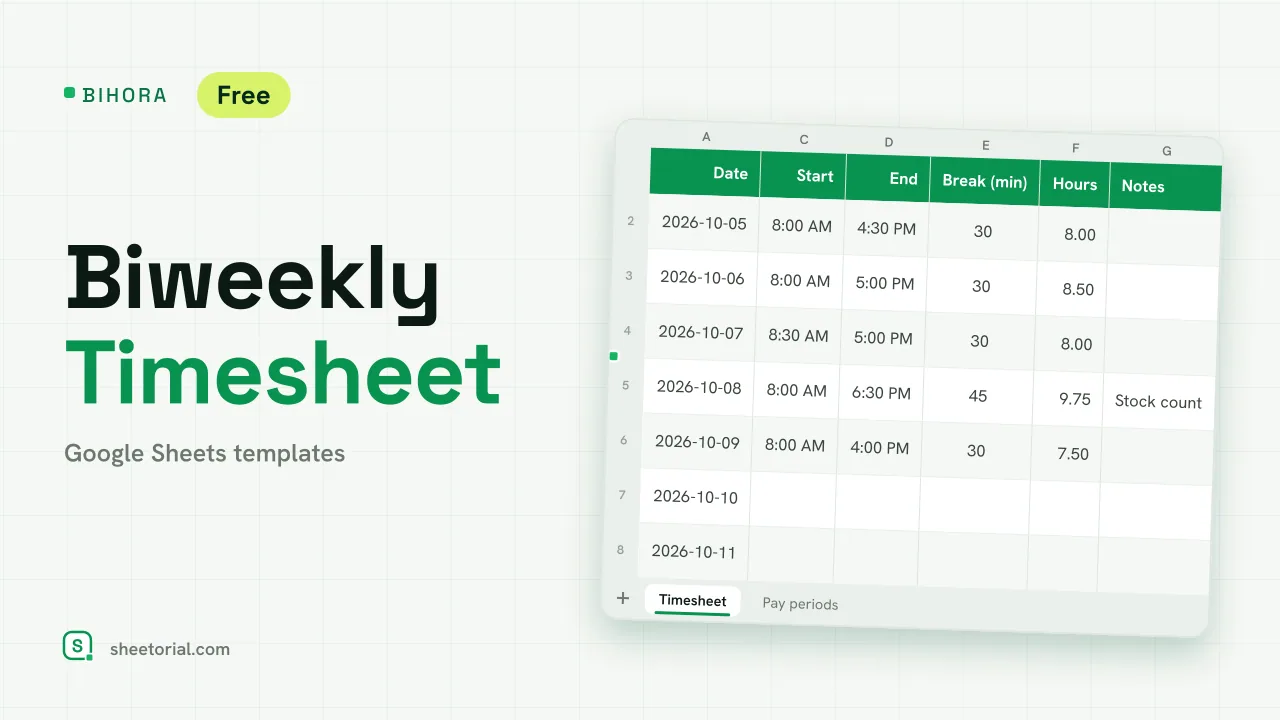 HR & Time Tracking BIHORA: Biweekly Timesheet Template for Google Sheets Biweekly timesheet template for Google Sheets: 14 days of start, end and break times, weekly overtime split out, regular and overtime pay, 26 pay periods. View template →
 -
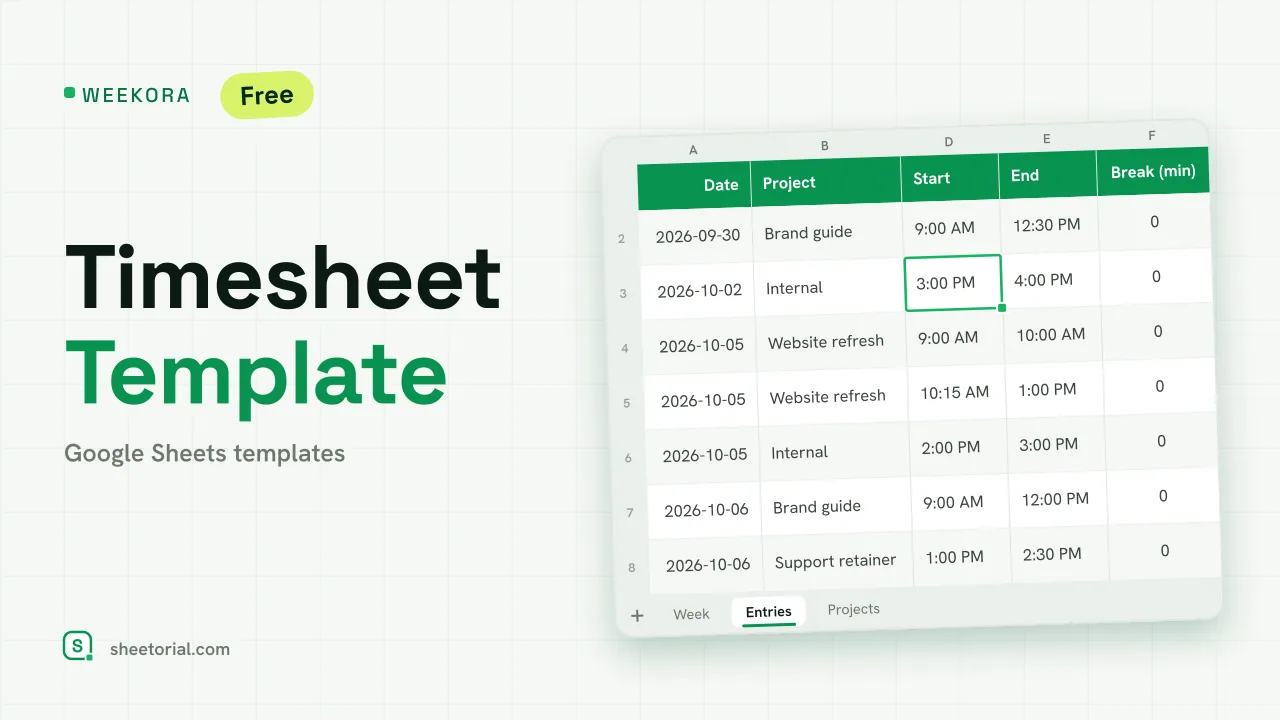 HR & Time Tracking WEEKORA: Timesheet Template for Google Sheets Timesheet template for Google Sheets: log time by project and task with start, end and break, mark billable hours and get a weekly summary by day and project. View template →
 -
 HR & Time Tracking ATTENDIX: Employee Attendance Tracker for Google Sheets Employee attendance tracker for Google Sheets: a monthly grid of daily codes (present, remote, late, absent, sick, vacation) with totals and attendance rate. View template →